Hosting on Azure VMSS
The Stack Automation management server can be hosted in various ways, one of them is Virtual Machine Scale Sets (VMSS). Azure Virtual Machine Scale Sets let you create and manage a group of load balanced VMs, and the number of VM instances can automatically increase or decrease in response to demand or a defined schedule. Instead of using the Stack Automation Kubernetes management server, Azure VMSS will utilize the Stack Automation Docker management server.
Stack Automation Management Server prerequisites for VMSS
- Stack Automation Management Server installation ZIP
- Open Stack Automation self-service web interface as an admin user
- Navigate to Resources → Management Servers
- Click New Management Server in the top-right corner
- In the Setup step, select Cloud → Public Cloud, then the Docker tile, and provide a name for the new management server (copy the name aside as we'll use it later on in the configuration process)
- On the Installation Instructions step, you can move on without downloading anything here — a management server entry is created in Stack Automation and will wait for a valid connection once the VMSS installer script (below) registers it
- Stack Automation API long token - Stack Automation long token allows API access without the need to refresh token once it's expires. It's possible to use the API references or the Stack Automation self-service web interface to generate such a token.
Creating an VMSS in Azure
-
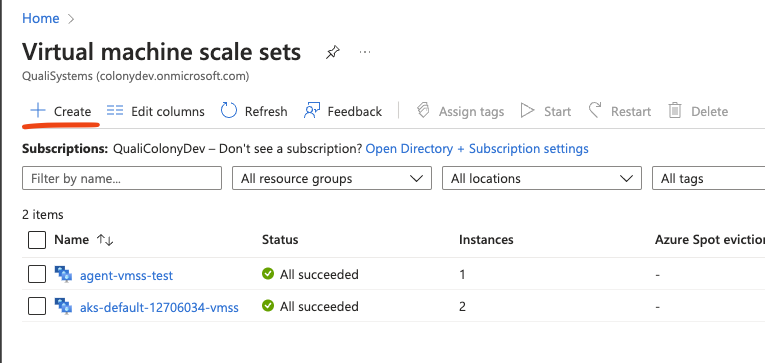
Navigate to portal.azure.com and search for VMSS.
-
click on "Create"
-
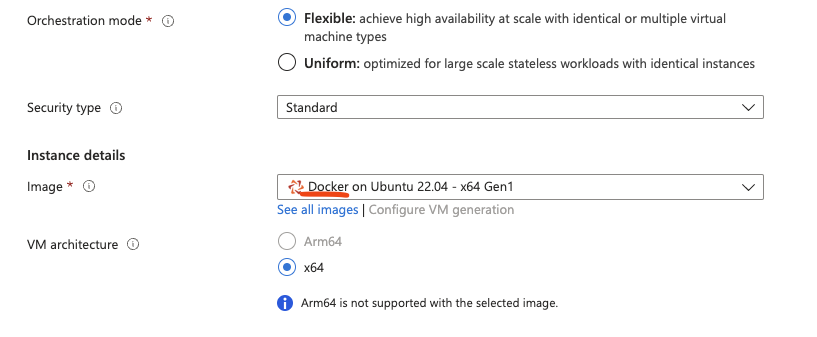
Choose a base image for you VMSS while making sure the image ships with docker pre-installed or supports docker execution. Here is an example for an Ubuntu based image shipped with pre-installed Docker.
-
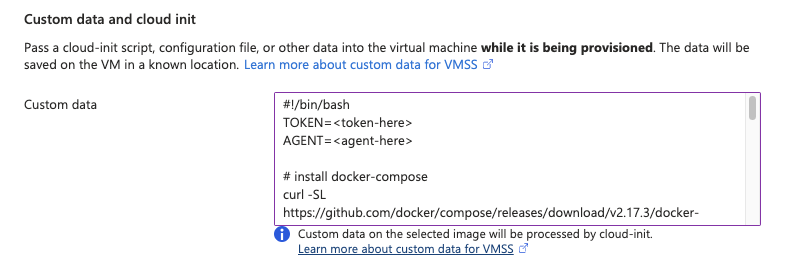
Change to the "Advanced" tab, and use the following installation code script in the Custom data section under Custom data and cloud init. The following code will use the Stack Automation API to install, execute and register the new management server on the VMSS machines once they are launched.
-
Make sure to replace the TOKEN with the token you generated earlier in the Stack Automation API or self-service, and the AGENT with the name of the management server you wish to create.
-
Finish the VMSS creation wizard and wait for the VMS to be created.
Validating the installation
To validate that a new Stack Automation management server was launched following VMSS creation:
-
log into the newly created machine (we used ssh in this example) and run the following:
sudo docker ps -aIn case the installation process ended successfully, you should see two docker containers running on the VM:

-
Login into the Stack Automation web-interface and make sure the new management server is marked as Connected in Resources → Management Servers.
Troubleshooting
In case an error occurred or the Stack Automation management server is not presented as Connected, make sure to go over the cloud-init logs for more information.
sudo cat /var/log/cloud-init-output.log