Changing advanced K8s settings
While Stack Automation offers a best practice configuration settings for deploying environments from your cluster, there may arise certain situations where overriding Stack Automation's default settings becomes necessary based on your specific requirements. You can modify certain settings of the Stack Automation runners (i.e. it will NOT affect your workloads, only the Stack Automation workloads).
Modifying these settings should be performed by the cluster administrator or subject to their approval, ensuring alignment with other existing cluster configurations you may have in place.
To modify these advanced settings, navigate to Resources --> Management Servers and select the management server which resides on the relevant cluster.
On the right 3-dot menu, click on "Edit Management Server" --> Then open the "Advanced Kubernetes Settings" dropdown.
In this panel, you can edit the management server name and tenant-id (for AKS management servers). In addition, you can view which namespace the Stack Automation management server is running at.
Advanced Settings
Changes to the configuration only takes effect on new deployments. Existing deployments will keep the values configured at the time of the launch.
Storage class
Storage Class is a K8s resource which allows you to request to create persistent volumes with certain properties. The storage class describes the properties Stack Automation will request the runner to create storage based to these properties. By default it is set to "Cluster's default" which means the Stack Automation runners will request the storage properties according to what is defined as the default storage class in the cluster. If you change it to other values, Stack Automation runners will request the storage class based on the new values.
For reclaimPolicy (delete|retain) - we recommend using "delete" (extra care should be taken if the policy is set to "retain").
Learn more here
Startup timeout
Runners pod startup timeout (seconds) - The time Stack Automation will wait for a runner pod to be provisioned. If your cluster is slow in creating pods/nodes in autoscaling, you may need to increase it. Be careful of setting too large timeouts, because if there is an inherent problem in the POD the error will suffice later.
Idle timeout
Runner pod idle timeout (seconds) - The time Stack Automation will wait before terminating an idle Runner. Any non-negative value is accepted. As runners are allocated from a shared pool, setting the timeout to higher values will optimize the current operation which already "owns" the runner, but will decrease the average pool size so the next operations may need to wait longer before they get a runner. Higher values can also be used for debugging purposes, as it allows more time to connect to the runner, look at its logs and debug issues.
Storage size
Total storage size (PVC size in MB) - The total size of PVC storage that will be allocated to Stack Automation runners.
Resource consumption
Resource Consumption determines the amount of CPU and memory requested by the Runners. This directly affects the performance of the execution Pods and their ability to be scheduled within your cluster's available capacity.
There are 8 available consumption levels for better control over performance and scheduling tradeoffs:
| Level | CPU (cores) | Memory (MB) |
|---|---|---|
| 0 - Minimal | 0.107 | 210 |
| 1 - Very Low | 0.142 | 273 |
| 2 - Low | 0.205 | 399 |
| 3 - Moderate | 0.324 | 420 |
| 4 - High | 0.512 | 462 |
| 5 - Very High | 0.806 | 504 |
| 6 - Intense | 1.272 | 546 |
| 7 - Maximal | 2.005 | 630 |
- CPU consumption increases exponentially, while memory grows linearly across the levels.
- Higher levels offer better runtime performance but increase the risk of scheduling failure if cluster resources are insufficient.
- Use lower levels (Minimal, Very Low) for development and testing. Use higher levels (Intense, Maximal) for production-grade workloads with higher performance needs.
In the API, these levels are represented by 0 through 7.
Storage class
Storage class supports ReadWriteMany - Check this checkbox if the storage class supports ReadWriteMany capability. Only storage classes which support this capability can share resources. If it is unchecked, there will not be sharing and each operation will spawn a new runner pod. Stack Automation cannot query the cluster to understand if it does or does not have this capability so we rely on your information. If you check this checkbox, you must also set the storage_class_name and not leave it empty. Even if the default storage class supports ReadWriteMany, please state the name explicitly.
Environment variables
Environment variables - key-values pairs of environment variables to set on the runner pod. This can be useful for setting global configuration such as HTTP_PROXY. It will affect all runners in the cluster.

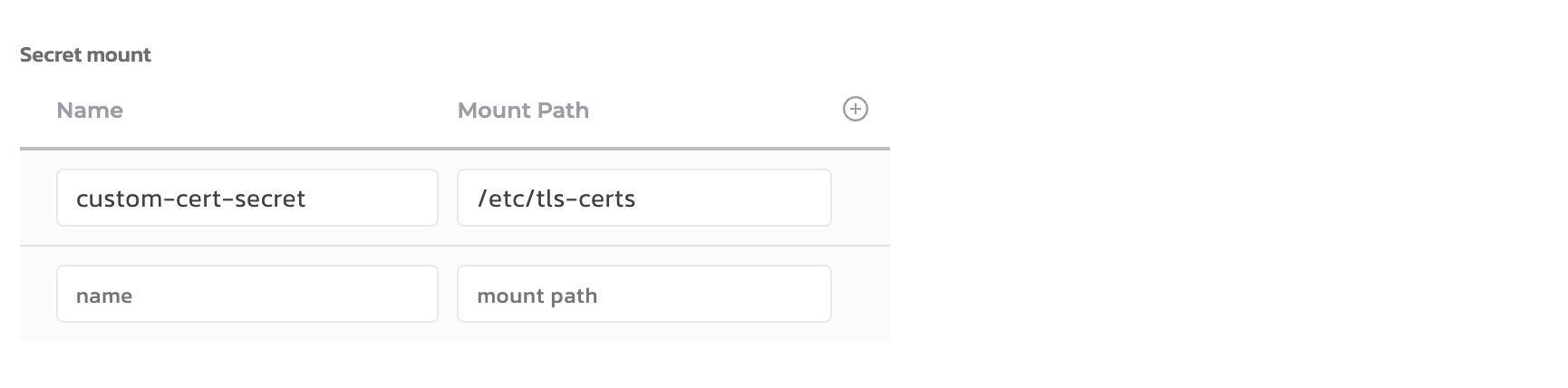
Secret mount
Secret mount - key-values pairs of Secret name to mount path to set on the runner pod. This can be useful for mounting a certificate located in a Kubernetes secret to a directory in the container. It will affect all runners in the cluster.
Pod labels
Similar to Environment Variables and Secret Mounts, Stack Automation allows you to specify labels that will be applied to the runner pods. These labels can be useful for various purposes, such as identifying and grouping pods, applying network policies, or integrating with external tools that rely on labels.
You can define runners pod labels on a grain level as well.
Here's an example of how you can define labels in the Blueprint:
spec_version: 2
description: Deploying Helm Chart by tag version

inputs:
  agent:
    type: agent

grains:
  standard-helm-chart:
    kind: helm
    spec:
      agent:
        name: '{{ .inputs.agent }}'
        kubernetes:
          pod-labels:
            - app: quali-stack-automation
            - app.kubernetes.io/managed-by: Helm
            - app_cmdb_id: A1234567
            - app_pod_name: quali-torque
            - app_version: 2.0.11
            - platform_short_name: cloud
In the above example, the pod-labels section under kubernetes defines a list of key-value pairs that will be applied as labels to the runner pods.
- Labels are applied to all runner pods created by the management server, regardless of the deployment or blueprint.
- Changes to the labels will only take effect for new deployments. Existing deployments will retain the labels configured at the time of launch.
- Labels should be configured by the cluster administrator or someone with appropriate permissions, as they can impact the behavior and management of pods in the cluster.
Using labels can help you organize and manage your runner pods more effectively. You can leverage labels for various purposes, such as filtering, grouping, or applying policies to specific sets of pods. Additionally, labels can be used for integration with external tools or services that rely on label selectors for their operations.
Pod annotations
Similar to Environment Variables, Secret Mounts and Pod Labels, Stack Automation allows you to specify annotations that will be applied to the runner pods. These annotations can be useful for various purposes, such as identifying and grouping pods, applying network policies, or integrating with external tools that rely on annotations.
You can define runners pod annotations on a grain level as well.
Here's an example of how you can define annotations in the Blueprint:
spec_version: 2
description: Deploying Helm Chart by tag version

inputs:
  agent:
    type: agent

grains:
  standard-helm-chart:
    kind: helm
    spec:
      agent:
        name: '{{ .inputs.agent }}'
        kubernetes:
          pod-annotations:
            - app: quali-stack-automation
            - app_cmdb_id: A1755468
In the above example, the pod-annotations section under kubernetes defines a list of key-value pairs that will be applied as annotations to the runner pods.
- Annotations are applied to all runner pods created by the management server, regardless of the deployment or blueprint.
- Changes to the annotations will only take effect for new deployments. Existing deployments will retain the annotations configured at the time of launch.
- Annotations should be configured by the cluster administrator or someone with appropriate permissions, as they can impact the behavior and management of pods in the cluster.
Using annotations can help you organize and manage your runner pods more effectively. You can leverage annotations for various purposes, such as filtering, grouping, or applying policies to specific sets of pods. Additionally, annotations can be used for integration with external tools or services that rely on an annotation for their operations.
Node selector
You can add the node-selector sections to your grain and specify the node labels you want the target node(s) to have. The node-selector and its labels will be applied on the pod specification. Kubernetes only schedules the pod onto nodes that have each of the labels you specify.
For example:
grains:
  nginx:
    kind: helm
    spec:
      source:
        ...
      agent:
        name:
        kubernetes:
          node-selector:
            - app: stack-automation