Licensing
Your Stack Automation account draws its entitlement from one or more external licenses — licenses issued outside the product, through a Cisco Commerce Workspace order and redeemed into the account with an activation token. Each license contributes a number of Concurrent Compute Units (CCU) to the account, and the sum of those units is the capacity your teams can consume at any one time.
The External Licenses page is where an account administrator does all of this: redeem a new token, check how much capacity the account has and how much of it is in use, inspect an individual license, and move a license to another account.
Admin → Account and Billing → External Licenses
Direct link:
https://stackautomation.cisco.com/admin/account_billing#external_licenses
Before you begin
- You need administrator permissions on the account to redeem, revoke, or reactivate a license.
- To redeem a license you need its activation token, which is sent to you by
email when the license is issued. Tokens begin with
LAK-. - If you do not have a Stack Automation account yet, create one first, then redeem the token into it.
The External Licenses page
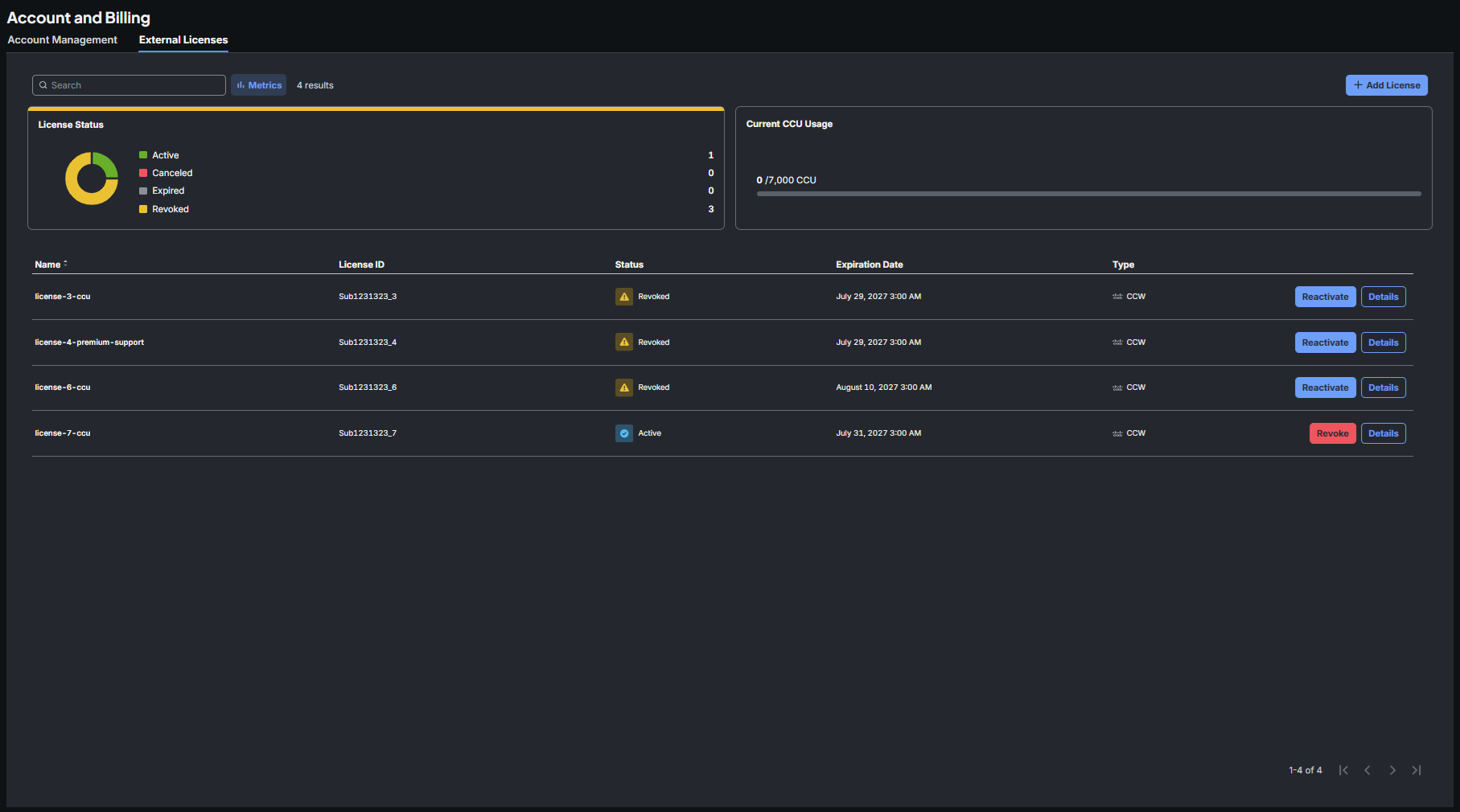
The page has three parts:
| Area | What it does |
|---|---|
| Toolbar | Search licenses by name or ID, toggle the Metrics widgets, see the result count, and open the + Add License dialog. |
| Metrics widgets | License Status breaks the account's licenses down by status; Current CCU Usage shows consumption against the account's total licensed capacity. |
| License table | One row per license, with the row actions available for that license. |
Metrics: License Status
The License Status widget counts the account's licenses by status. Use it as a health check — for example, a high Revoked or Expired count next to a low Active count usually explains why the account has less capacity than expected.
Only Active licenses contribute CCU to the account. Licenses in every other status are retained for reference and for reactivation, but they add no capacity.
Metrics: Current CCU Usage
Current CCU Usage aggregates the units from all active licenses on the
account and shows how many of them are currently consumed, as
consumed / total CCU with a matching progress bar. In the example above the
account is entitled to 7,000 CCU and is consuming none of them.
Consumption is a live figure: it rises and falls as environments and deployments reserve and release compute. The total changes only when a license is redeemed, revoked, reactivated, expires, or is canceled.
If the total does not match what you ordered, check the status of every license in the table. Capacity that "disappeared" is almost always sitting in a revoked or expired license.
The license table
| Column | Description |
|---|---|
| Name | The alias you gave the license when you redeemed it. This is a label for your own use — it has no effect on entitlement. Sortable. |
| License ID | The identifier of the license as issued by the source system, for example Sub1231323_7. Quote this when contacting support. |
| Status | The license's current state. See License statuses. |
| Expiration Date | The date and time the license stops providing entitlement. |
| Type | The source the license was issued from, for example CCW (Cisco Commerce Workspace). |
| Actions | Revoke or Reactivate, depending on status, plus Details. |
Long lists are paged; use the pagination controls at the bottom right to move between pages.
License statuses
| Status | Meaning | Contributes CCU? | Available actions |
|---|---|---|---|
| Active | The license is redeemed on this account and providing entitlement. | Yes | Revoke, Details |
| Revoked | An administrator detached the license from this account so it can be redeemed elsewhere. The license is still valid, but it is not serving this account. | No | Reactivate, Details |
| Expired | The license passed its expiration date. | No | Details |
| Canceled | The underlying subscription or order was canceled at the source, so the license is no longer valid. | No | Details |
Active and Revoked are the two statuses you control from this page, and the move between them is reversible in both directions. Expired and Canceled are set by the license itself or by the issuing system — you cannot change them from Stack Automation. To restore capacity after an expiration or cancellation, obtain a new or renewed license.
Add a license
Redeeming a token adds its license to the account and, if the license is valid, its units to the account's capacity.
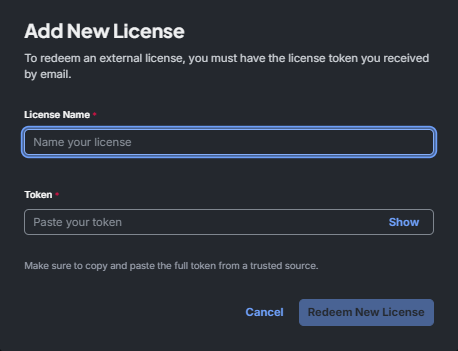
- On the External Licenses page, click + Add License.
- In License Name, enter an alias for the license. This is how the license
appears in the table, so choose something you will recognise later — for
example
license-7-ccuorpremium-support-2027. - In Token, paste the full activation token from the email that was sent when the license was issued. Click Show if you want to confirm what you pasted.
- Click Redeem New License.
The license appears in the table with the status Active, and its units are added to Current CCU Usage.
A token is a credential. Copy it directly from the email you received — truncating it, retyping it, or accepting one forwarded from an unverified source will either fail to redeem or attach a license you did not order.
Each license has exactly one valid token at a time. If a license was revoked, its token was regenerated and a new one was emailed — the earlier token no longer works. Always redeem from the most recent email for that license.
View license details
To inspect a license, click Details on its row. The details pane opens on the right.
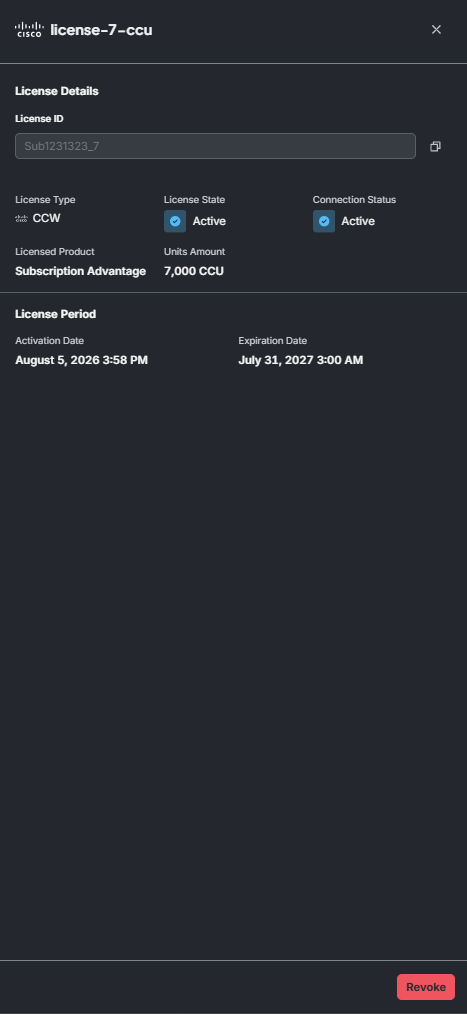
| Field | Description |
|---|---|
| License ID | The identifier from the issuing system. Use the copy button beside it to copy the value. |
| License Type | The source the license was issued from, for example CCW. |
| License State | The license's status on this account — the same value shown in the table. |
| Connection Status | Whether Stack Automation currently reaches the issuing system for this license. |
| Licensed Product | The product or offer the license entitles you to, for example Subscription Advantage. |
| Units Amount | The CCU this license contributes to the account. |
| Activation Date | When the license was redeemed into this account. |
| Expiration Date | When the license stops providing entitlement. |
You can revoke the license directly from the pane using the Revoke button at the bottom.
Revoke a license
Revoke a license when you want to redeem it on a different account — for example, when consolidating accounts or moving a team's entitlement to another tenant. A license can only be active on one account at a time, so it has to be released here before it can be redeemed there.
- Locate the license in the table and click Revoke. You can also revoke from the details pane.
- Confirm the action.
After revoking:
- The license's status becomes Revoked and its units are removed from the account's total capacity.
- The license's activation token is regenerated as a security precaution, and the new token is emailed to the license contact. The previous token stops working immediately.
- The license remains listed on this account so you can reactivate it.
Revoking reduces the account's licensed CCU as soon as it takes effect. If consumption currently depends on those units, revoke during a maintenance window or after confirming the capacity is not in use.
Reactivate a license
Revoking is reversible. If a license was revoked from this account and has not been redeemed elsewhere, click Reactivate on its row to return it to Active status and restore its units to the account.
To move a revoked license to a different account instead, redeem the new token there using Add a license.
Troubleshooting
The token was rejected.
Confirm you copied the whole token, including the LAK- prefix, and that you
are using the most recent email for that license. A token that was regenerated
after a revoke invalidates every earlier token for the same license.
I have a token but no account. Create a Stack Automation account first, then sign in and redeem the token from this page.
The license was redeemed but capacity did not change. Check the license's status and Units Amount in the details pane. Only active licenses contribute CCU, and a license that redeemed into a different account will not appear here.
A license disappeared from the account. Licenses are not removed by revoking — they stay in the table as Revoked. Clear the search box and check the License Status widget for the full count.