Using Stack Automation Copilot
Stack Automation Copilot is the built-in AI assistant for Stack Automation. It is accessible from the top bar of the Stack Automation application and lets you interact with your account using natural language instead of navigating the UI or writing code by hand.
Copilot can answer questions about your inventory and deployments, author and edit blueprints, operate your deployments (environments), and answer general product and documentation questions. It understands the context of your inventory resources, blueprints, deployments, repositories, and policies—so requests can be expressed the way you would describe them to a colleague.
Opening Copilot
Click the Copilot icon in the top bar to open the Copilot panel. The panel opens on the right side of the console and remains available while you continue to work.
The panel is organized into two areas:
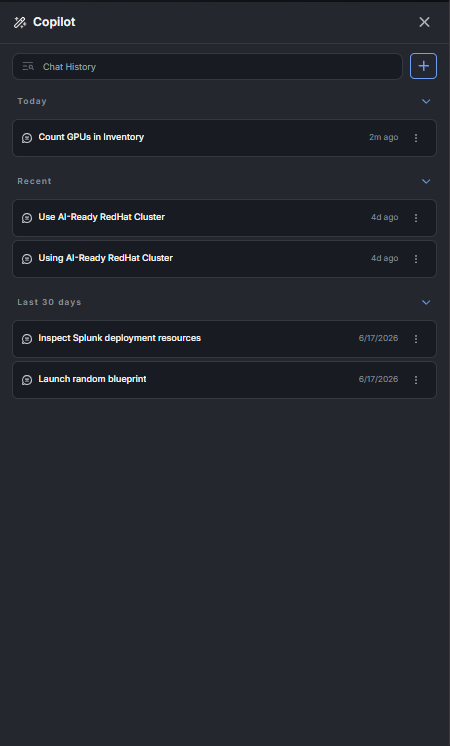
- Chat History — a searchable list of your previous conversations, grouped by recency (Today, Recent, Last 30 days). Select any conversation to reopen it with its full context, or use the search box to find a past chat.
- Composer — the input area at the bottom of the panel where you type your request and configure how Copilot should handle it.
Starting a new chat
Each conversation in Copilot maintains its own context. Starting a new chat gives you a clean context that is not influenced by earlier, unrelated conversations, which produces more accurate and focused results.
To start a new conversation, click + New Chat (or the + button next to the search box in the Chat History view). You can then type your request in the composer and configure the options described below before sending it.
Configuring the composer
Before sending a request, you can enrich the chat with additional data and control how Copilot processes it. The composer exposes the following options:
- Connect a repository — attach a Git repository to the chat. This is required for any operation that results in a repository pull request (PR), such as creating or editing a blueprint. Copilot commits its changes to a branch in the connected repository and opens a PR for your review.
- Define the entity — scope the chat to the entity you want to work on (for example, a specific blueprint, deployment/environment, or resource). Setting the entity focuses Copilot on the relevant object and reduces ambiguity.
- Default Approvals — choose whether actions require your explicit approval before they are executed. When set to No, Copilot pauses and asks for confirmation before performing an action; when set to Yes, approved action types are carried out automatically.
- Engine and thinking level — select the underlying model version (for example, GPT-5.4) and the reasoning effort—Low, Medium, or High. Higher thinking levels apply more reasoning to complex requests at the cost of a slightly longer response time; lower levels return faster answers for simple requests.
You can also choose a focus mode for the chat—Auto (Copilot selects the appropriate skills automatically), Docs (answer questions from the documentation), Blueprints (author and edit blueprints), or Deployments (launch, monitor, and fix deployments).
What you can ask Copilot
Copilot supports four broad categories of requests. The examples below illustrate how to phrase each type.
1. Querying your account
Ask questions about your inventory, resources, and deployments. Copilot inspects your account data and returns a direct answer.
- How many GPUs are available across my lab inventory?
- How many active deployments do I have in the RTP location?
2. Blueprint design
Ask Copilot to author or modify blueprints. These operations require a connected repository, because Copilot delivers its changes as a repository pull request.
- Create a blueprint from my existing Nexus Dashboard application building block.
- Generate a blueprint that provisions a three-tier web application with a load balancer, two application VMs, and a database, and expose the web tier as an output.
3. Deployment (environment) operations
Ask Copilot to operate on your deployments (environments)—including power actions, running scripts, and scheduling recurring operations.
- Power off all virtual machines across all of my active deployments.
- Run the health-check script on the environment 'MyEnv1' every hour and notify me if it detects any issue.
4. General documentation questions
Ask how to accomplish a task in Stack Automation. Copilot answers from the product documentation.
- How do I connect a repository to Stack Automation?
- How do I define a governance policy?
Example: querying GPU inventory
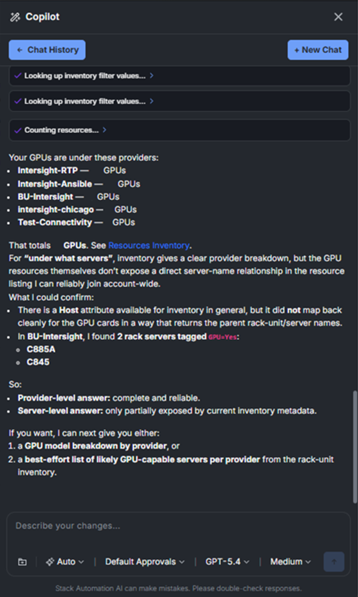
The following example shows Copilot answering the question "How many GPUs do I have in my lab?"
Copilot performs several steps—looking up inventory filter values and counting resources—then returns a breakdown of GPUs by provider along with the total
This totals with a link to the Resources Inventory for verification. Copilot also distinguishes between what it can answer reliably (the complete, provider-level breakdown) and what is only partially exposed by the current inventory metadata (a server-level mapping of which hosts carry the GPUs), and it offers relevant follow-up options such as a GPU model breakdown by provider.
Monthly token allotment
Stack Automation Copilot is powered by large language models, and usage is measured in tokens. Every Stack Automation account includes a set amount of Copilot tokens per month. Requests that involve more context, higher thinking levels, or longer responses consume more tokens. When your monthly allotment is reached, Copilot usage is limited until the allotment resets or additional capacity is added to your account.
Disclaimer
Stack Automation AI can make mistakes. Always review Copilot's answers and proposed changes before relying on them or approving any action—especially for operations that modify deployments or open repository pull requests.