AI Integrations
Connect your AI tools to Stack Automation.
Stack Automation exposes a Model Context Protocol (MCP) server so that AI agents and assistants can interact with your blueprints and deployments in natural language. Instead of switching to the Stack Automation UI, your team can list spaces, launch blueprints, inspect running deployments, and troubleshoot deployments directly from the AI tools they already use — Claude, OpenAI Codex, GitHub Copilot in VS Code, or any other MCP-compatible client.
This section walks you through generating an API token and connecting each supported tool. The whole flow is designed to take a couple of minutes per tool.
Why connect an AI agent?
Bringing Stack Automation into your AI agent turns infrastructure operations into a conversation. The main benefits:
- Self-service, in the tools you already use. Developers ask for deployments and launch blueprints from their editor, terminal, or desktop assistant — no context switching to a separate console.
- Natural-language operations. "List my Stack Automation spaces", "launch the
aws-eks-sandboxblueprint in thedevspace", or "show me why my last deployment failed" all work without learning the REST API or CLI flags. - Guardrails stay in place. The agent acts through your Stack Automation API token, so every action is bound to your existing roles, permissions, and policies. Agents can only do what you can do.
- Consistent, reproducible actions. The MCP server exposes the same operations the UI and API use, so agent-driven actions behave identically to manual ones.
- Works across the ecosystem. One MCP server, many clients. Anything that speaks MCP — Claude, Codex, Copilot, Cursor, Windsurf — can connect the same way.
How it works
Every integration authenticates with a single Stack Automation API token. You generate the token once in the AI Integrations side pane, then paste it (or let the setup script inject it) into whichever tool you're connecting. Under the hood, all clients talk to the same hosted MCP endpoint over HTTP, sending the token as a bearer credential.
AI tool ──(MCP over HTTP, Bearer <API token>)──▶ Stack Automation MCP Server ──▶ Spaces · Blueprints · Deployments
Generate your API token
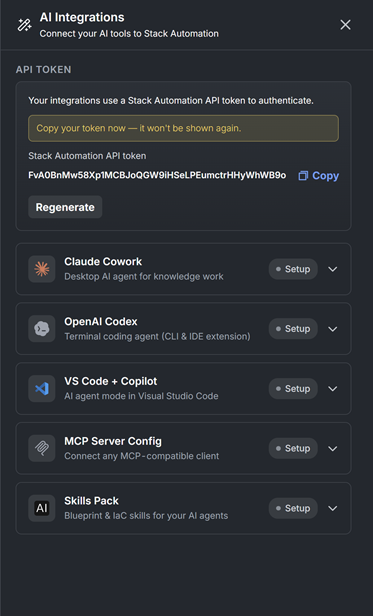
- Open Stack Automation and click the AI Integrations on the top bar (the side pane shown above will open).
- Click the Generate token button under API TOKEN and copy the generated Stack Automation API token.
- Store it somewhere safe — for security, the token is shown only once. If you lose it, use Regenerate to create a new one.
Treat this token like a password. It grants the same access you have in Stack Automation. Do not commit it to source control or share it in plain text. If a token is exposed, click Regenerate to revoke the old one immediately.
In the examples throughout this section, the token is written as
<YOUR_STACK_AUTOMATION_TOKEN>. Replace it with the value you copied.
Choose your integration
| Integration | Best for | Setup guide |
|---|---|---|
| Claude Cowork | Desktop AI agent for knowledge work | Connect Claude Cowork |
| OpenAI Codex | Terminal coding agent (CLI & IDE extension) | Connect OpenAI Codex |
| VS Code + Copilot | AI agent mode in Visual Studio Code | Connect VS Code + Copilot |
| MCP Server Config | Any MCP-compatible client (Claude Code, Cursor, Windsurf…) | Connect via MCP config |
| Skills Pack | Blueprint & IaC skills for your AI agents | Install the Skills Pack |
Each guide includes the exact steps, the commands or config to copy, and a first prompt to verify the connection works. When you finish a tool's setup, tick "I've completed the setup — mark as connected" in its panel to track status.
Verify a connection
Every integration exposes the same underlying operations, so the quickest way to confirm a tool is connected is to ask it a read-only question, for example:
- "List my Stack Automation spaces."
- "List my Stack Automation deployments."
- "Show the blueprints available in the
devspace."
If the agent returns your real spaces or deployments, the connection is working.
Next steps
- Pick a tool above and follow its guide.
- Once connected, try launching a blueprint or inspecting a deployment by asking the agent in plain language.
- Add the Skills Pack to give your agent ready-made blueprint and Infrastructure-as-Code know-how.