GitHub Source Control
Stack Automation supports connecting asset/blueprint repositories on GitHub out of the box. However, to connect a repository, you must have access to the repository and grant Stack Automation permission to the repository using a PAT (Personal Access Token), as explained below. For details about adding your assets to Stack Automation, see Discover Your Assets. You should be able to sign in with an account on any one of these online services and immediately get going by connecting asset repositories and launching deployments.
In this article:
- Ensure your account is added to the GitHub organization you're connecting
- What is a Personal Access Token?
- Connect a repository using a Personal Access Token
- Token expiration and revocation
This article refers to the SAAS version of GitHub (github.com). If you're using self hosted GitHub Enterprise, check here.
Ensure your account is added to the GitHub organization you're connecting
- Go to https://github.com/orgs/{YOUR_ORG}/people.
- Make sure your user is listed in the organization. If not, make sure the user is added as a member with global read access.
What is a Personal Access Token?
A Personal Access Token (PAT) is a credential you generate on GitHub that Stack Automation uses in place of a password to authenticate and access your repositories. GitHub offers two types of PAT:
- Classic tokens — grant access based on broad, predefined scopes (e.g.,
repo,read:org). - Fine-grained tokens — grant access to specific repositories with more granular permissions, offering tighter control over what Stack Automation can access.
Either type works with Stack Automation. For instructions on generating one, see GitHub's Managing your personal access tokens documentation.
Connect a repository using a Personal Access Token
Stack Automation connects to GitHub using a Personal Access Token (PAT). Both classic and fine-grained tokens are supported.
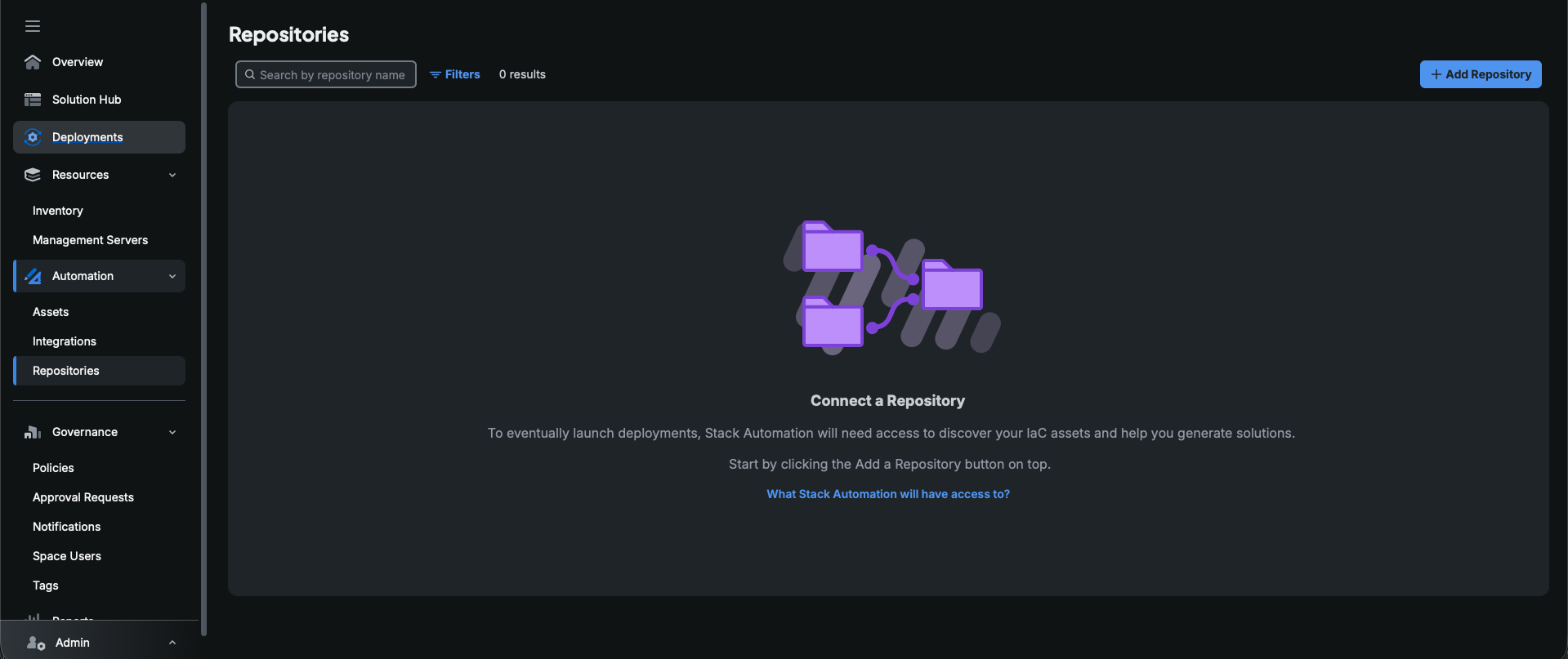
- In Stack Automation, go to Automation > Repositories and click Add Repository.
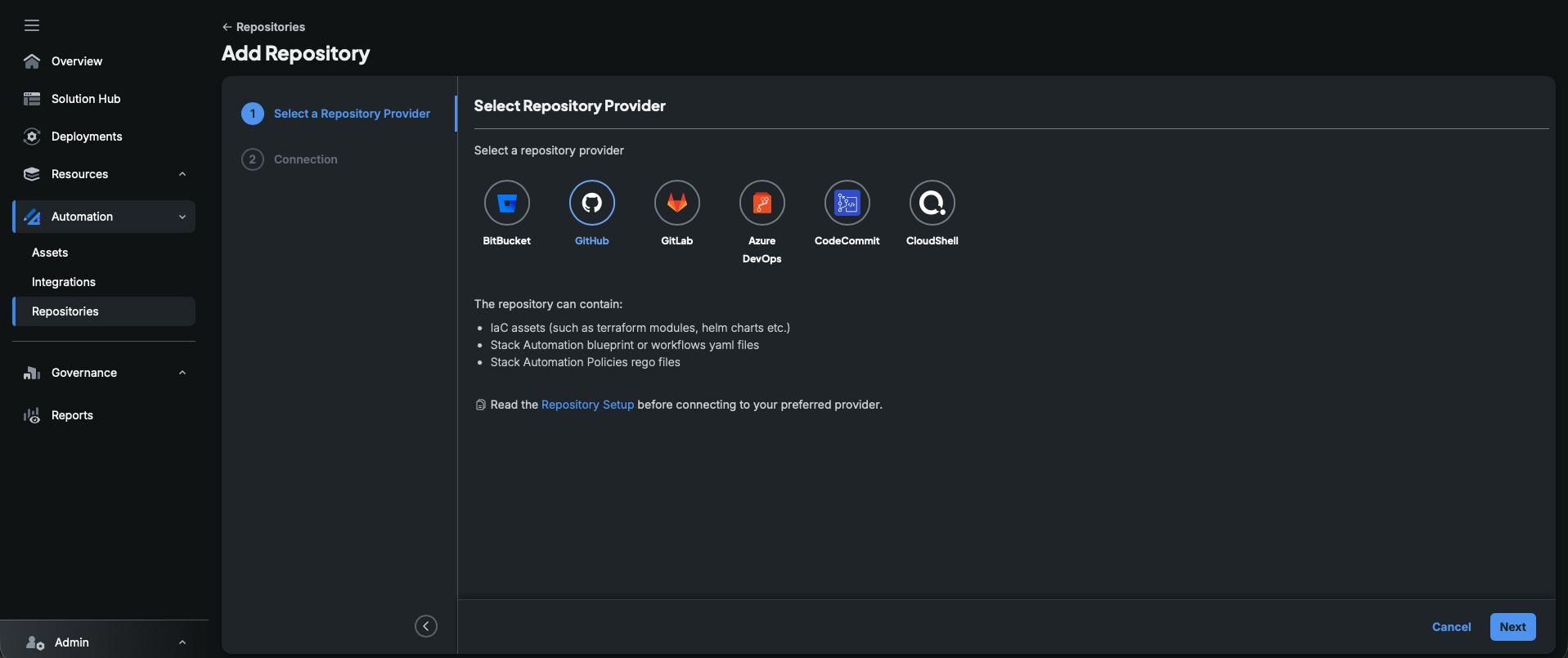
- In Select a Repository Provider, choose GitHub and click Next.
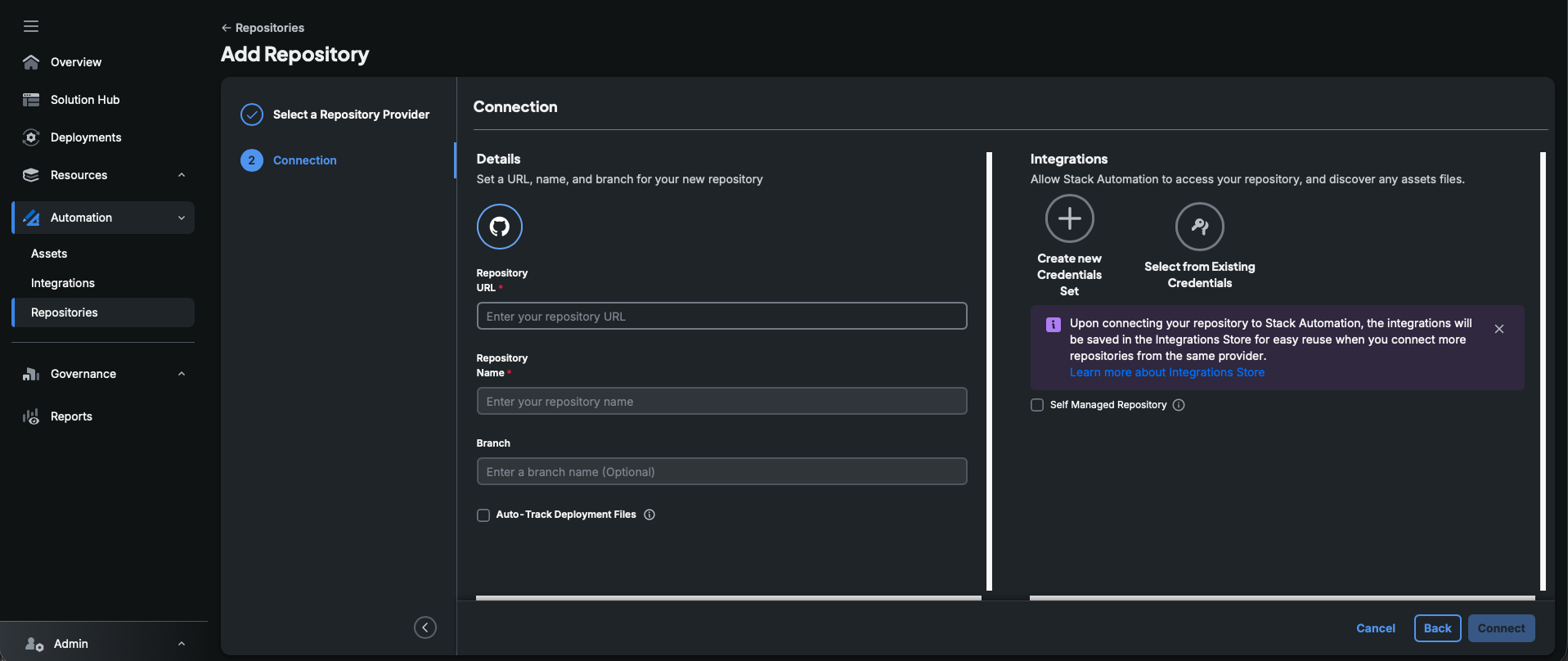
- On the Connection step, fill in the Repository URL, Repository Name, and optionally a Branch under Details.
- Under Integrations, click Create new Credentials Set (or Select from Existing Credentials to reuse a saved one).
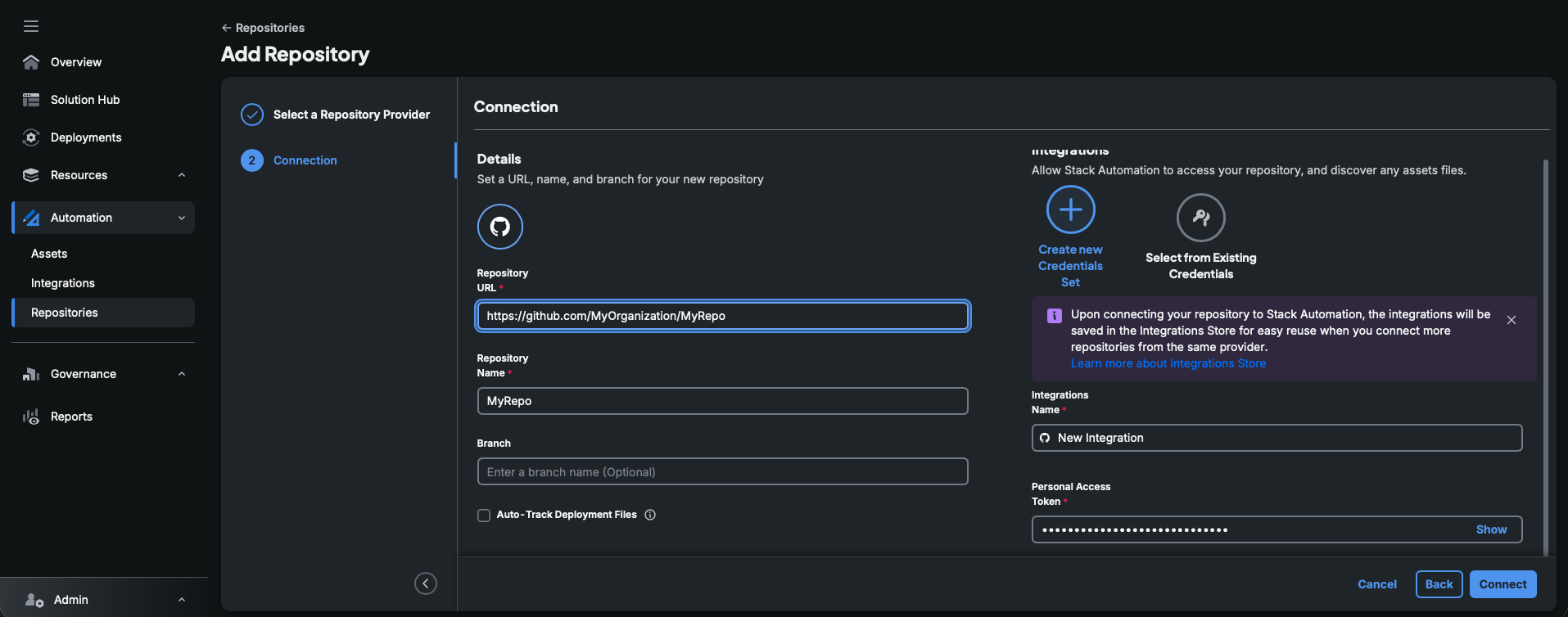
- Give the new set an Integrations Name, then enter your Personal Access Token.
 info
infoClick the Auto-Track Deployment Files option if you want to automatically discover and track Deployment Files from this repository.
- Leave Self Managed Repository unchecked — that option is only for self-hosted GitHub Enterprise. See Self-Managed GitHub for that flow.
- Click Connect.
Token expiration and revocation
GitHub imposes a limit on the number of tokens an application can create for the same user, and will revoke the oldest one once this limit is passed. For details, see GitHub token expiration and revocation policy.