Azure Repos Source Control
Stack Automation supports connecting asset/blueprint repositories on Azure Repos out of the box. However, to connect a repository, you must have access to the repository and grant Stack Automation permission to the repository's organization, as explained below. For details about connecting a repository, see Discover Your Assets. You should be able to sign in with an account on any one of these online services and immediately get going with connecting asset repositories and launching deployments.
This article refers to the SAAS version of Azure Repos. If you're using Azure Repos behind your firewall, check here.
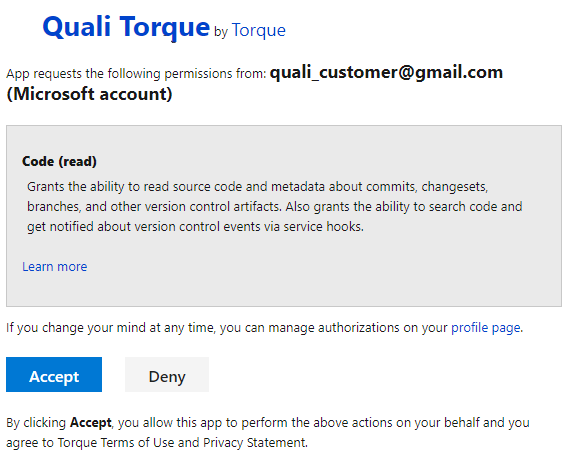
When connecting a repository, Stack Automation’s OAuth app (Stack Automation Control Plane) asks for permissions to access repositories on your organization. If Stack Automation doesn't have access, you will be prompted to grant the proper authorizations when connecting the asset repository. The approved applications are listed in the Azure Applications page (https://dev.azure.com/{you_org}/_usersSettings/authorizations).
-
In Stack Automation, go to the space's Settings > Repositories area and connect the repository. Note that the repository URL should be in the correct format: https://dev.azure.com/{org_name}/{project_name}/_git/{repo_name}
-
Authorize the organization.
-
Go to Azure Applications (see above) and make sure the Stack Automation application has been authorized.

At this point, the Stack Automation app was given the necessary permissions to the organization. 4. Return to Stack Automation and continue setting up the connection.
Troubleshooting
In some cases, repository access might be restricted or limited due to several seasons. Following the below steps and retry to onboard your repository once you apply the changes.
-
Make sure your Azure DevOps instance is open for accepting external communication - make sure no security/networking rule is applied between Stack Automation and Azure DevOps.
-
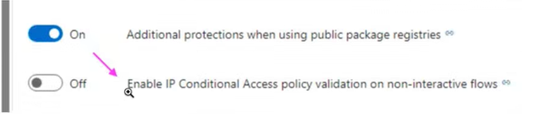
In the Azure DevOps security organization settings - make sure that "Third-party application access via OAuth" is enabled

-
In the Azure DevOps security organization settings - make sure that "IP conditional access" is turned off.