Notifications
Stack Automation Notifications enable space admins to define notifications for deployment lifecycle events and deployment owner/collaborator changes. The notifications will be sent to your email address, Teams or Slack chats, or the automation tool of your choice. You can define multiple notifications for different communication tools and for different channels in the same communication tool.
Supported events:
Deployment Events:
- Deployment Launch Scheduled
- Deployment Launch Cancelled
- Deployment Launched
- Deployment Deployed
- Deployment Active With Error
- Deployment Ended
- Deployment Ending Failed
- Deployment Force Ended
- Deployment Launch Approved
- Deployment Launch Denied
- Deployment Idle
- Deployment Extended
- Deployment Rescheduled
- Workflow Started
- Workflow Failed
- Drift Detected
- Updates Detected
- Collaborator Added
- Action Failed
Blueprint Events:
- Blueprint Published
- Blueprint Unpublished
Space Events:
- Agent Disconnected
- Repository Disconnected
To configure Stack Automation notifications:
- In Stack Automation, access the suitable space.
- Click Settings > Notifications.
- Click + Add Notification.
- Select the suitable communication tool (Slack, Teams, Webex, Mail, or generic webhook).
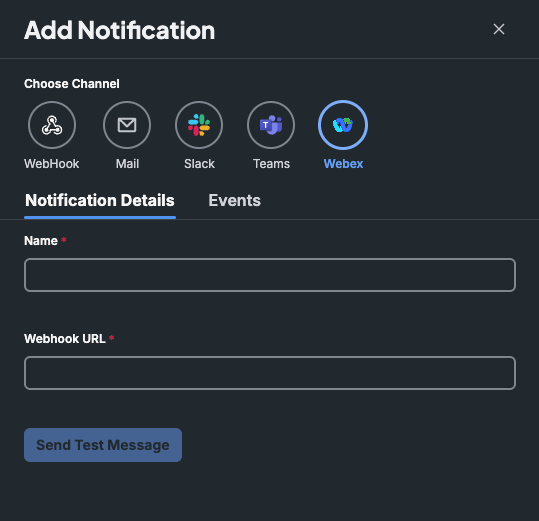
- Provide a Name for the notification.
- Enter the webhook address, as explained in the desired tool’s official documentation.
- For Slack, see https://api.slack.com/messaging/webhooks.
- For Teams, see https://learn.microsoft.com/en-us/microsoftteams/platform/webhooks-and-connectors/how-to/add-incoming-webhook.
- For Webex, see https://developer.webex.com/messaging/docs/api/guides/webhooks.
- For your preferred automation tool, see the tool’s documentation.
- This step is not needed for Email, as we'll configure the notifications to be sent to the logged-in user's email address.
- For generic webhooks, optionally provide a token from the tool to send with the notification, and select the desired event to test.
- Test the configuration.
- Click Send Test Message and make sure you receive a Stack Automation notification message in the chat or generic tool.
- Click Events to select the notifications to send.
- Click Apply.
Webhook Notification Schema
For the Generic Webhook payload envelope, headers, and EventData schemas by event type, see Webhook Notifications Payload Schema.